How to use Chordelio
Everything the app does, step by step. The labels in bold are the app's own.
-
Choose the instrument
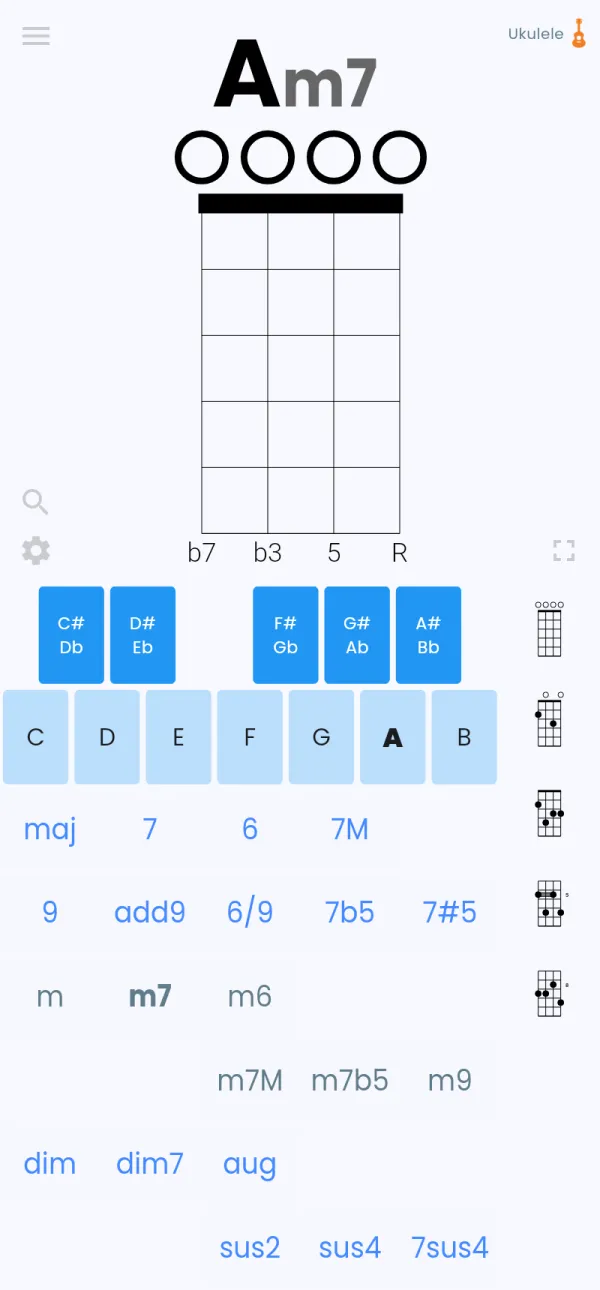
Tap the instrument at the top right, or go to Settings → Instrument. Each instrument keeps its tuning.
-
Choose the chord
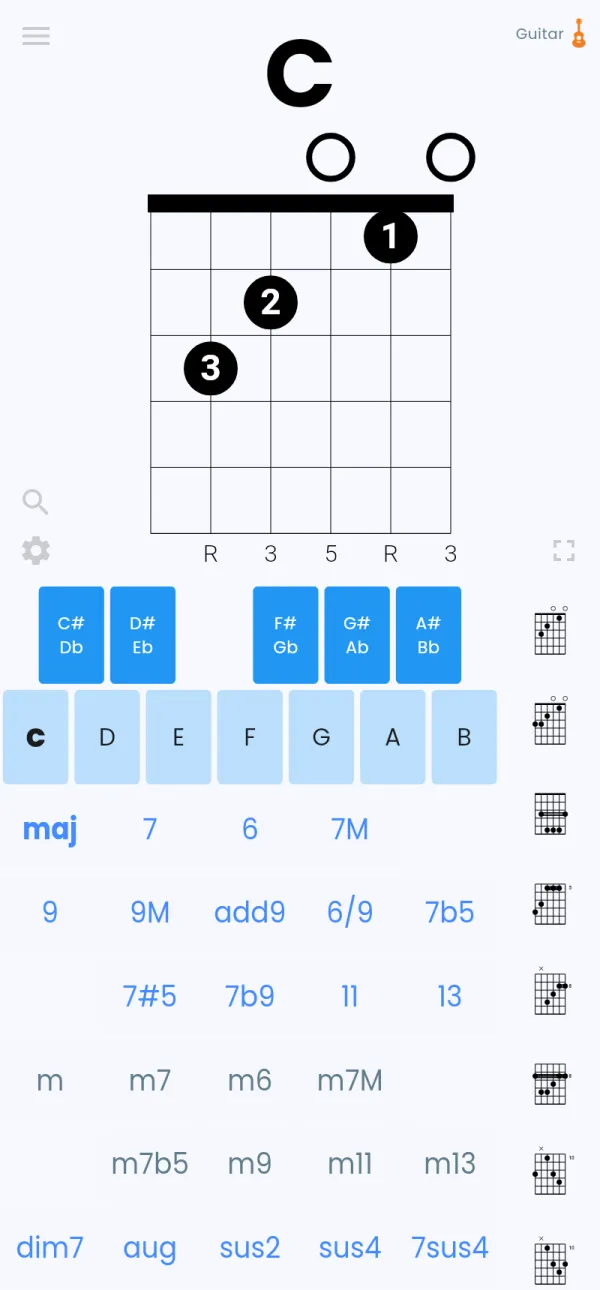
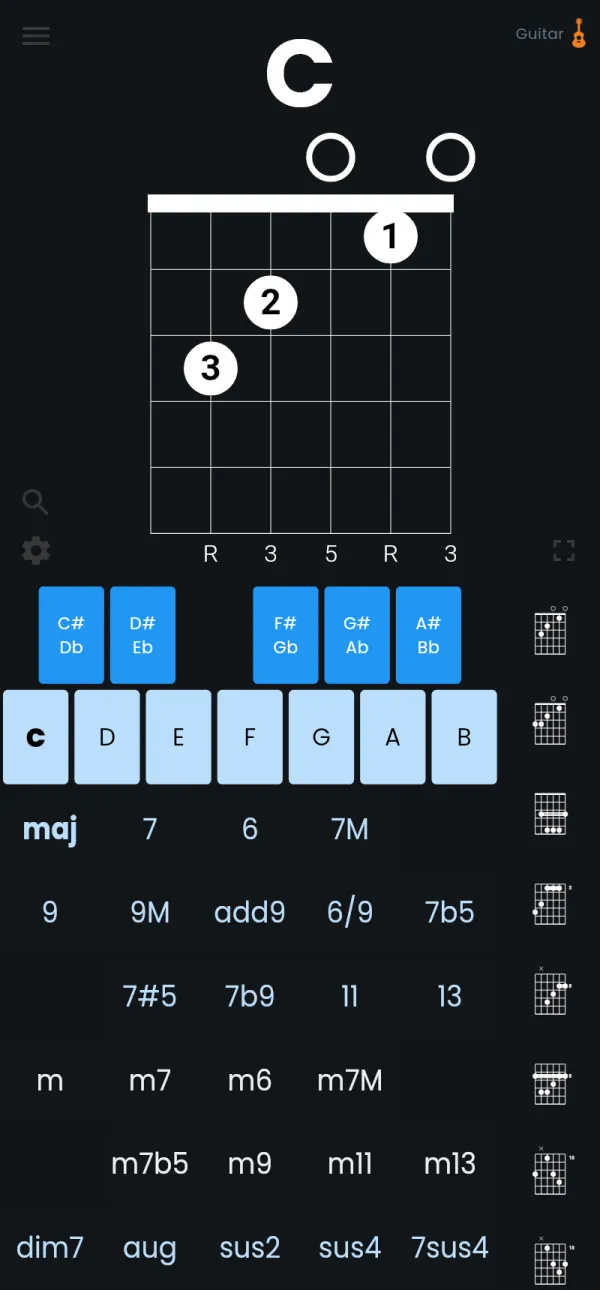
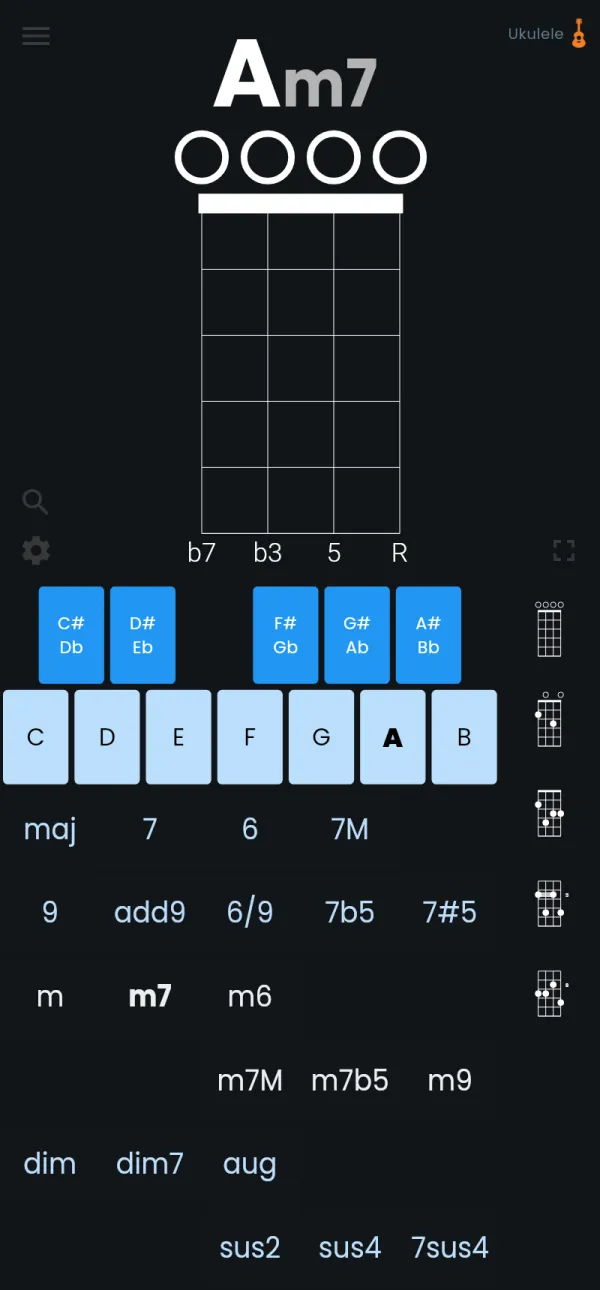
Tap the root on the keyboard (C, D, E… and the sharps and flats above), then the type below it (maj, m, 7, m7…).
-
Browse the positions
The column on the right lists the positions, from the nut up the neck. Tap one to see it large.
-
Hear it
Tap the diagram to play the chord. Auto-play chords in the settings plays each new chord.
-
Intervals or notes
Tap the row under the strings: the intervals (R for the root, 3, 5…), then the note names with sharps, then with flats.
-
Full screen
The full screen button shows the chord alone, large, for a music stand or a tablet.
-
Find a chord from its notes
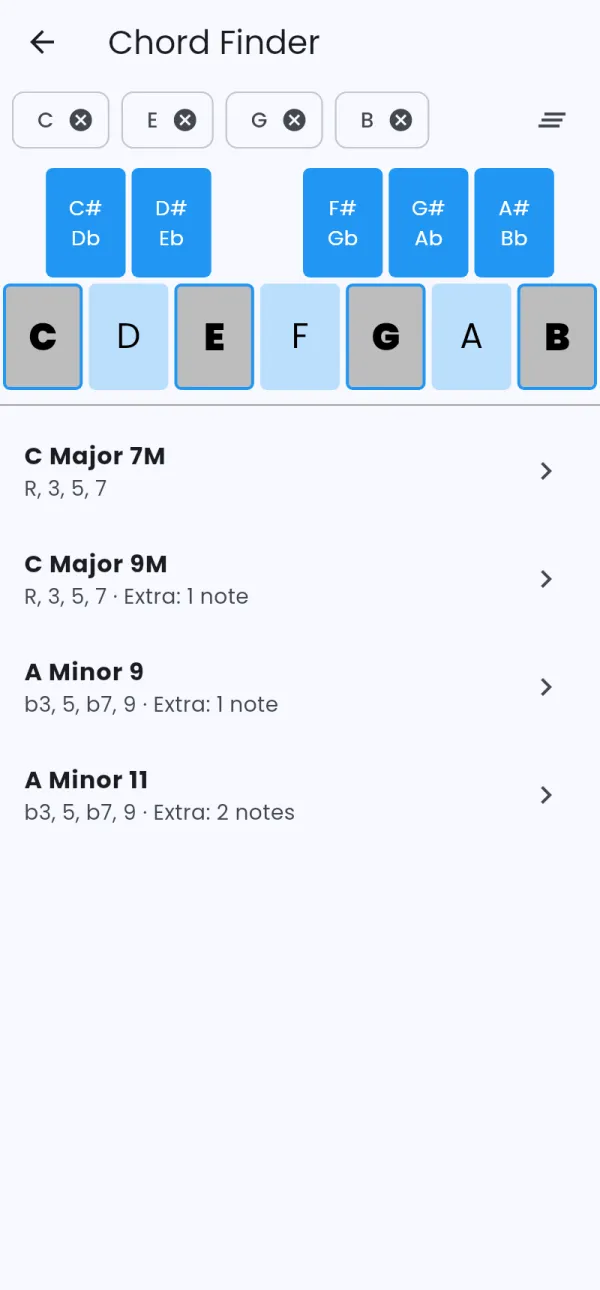
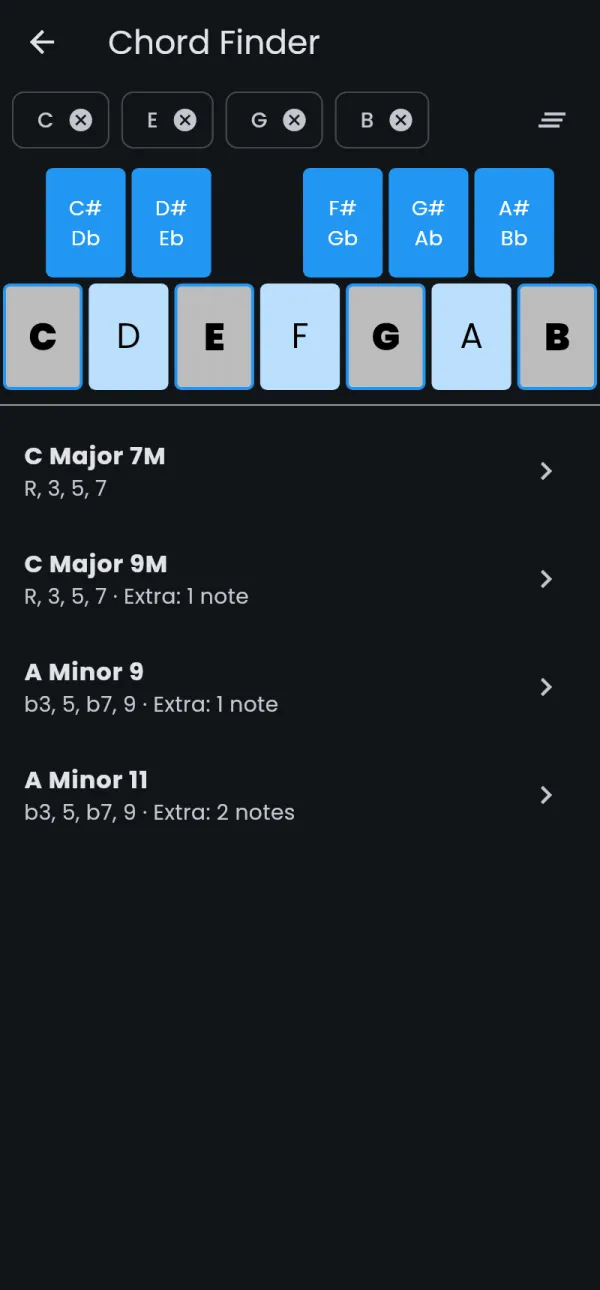
Open the Chord Finder (the magnifier). Select notes on the keyboard: it lists the chords that contain them, with at most two extra notes.
-
Left-handed
Settings → Left handed mirrors every diagram.
-
On the web
In the web app the address follows the chord: bookmark it or send it, it opens on the same chord and position.